Shopify
AR Try-On
2D-to-3D

TL;DR
Most Shopify Try-On pilots don't fail because the AR doesn't work. They fail because shoppers never find the button. Engagement caps in the teens, the team gets cold feet, the feature gets quietly de-prioritized. This playbook is the UX & communication field guide we built from 40+ pilots across Shopify footwear, bags, and apparel brands: why Try-On pays off for the business, why discoverability is the lever, the eight placement rules, the layouts that work (and don't), the desktop-to-mobile QR handoff, how to badge Try-On items on collection pages to drive PDP traffic, and a 90-minute setup to get all of it live on Day One. Scope: the WEARFITS Shopify plugin — Try-On button on PDPs plus shoes digitization. Heavier setups (sizing/fit prediction, in-store mirrors, 3D viewer + VTO combos, custom web modules) sit on top via our API; see the closing section for that path.
Before we dig into where to put it, let's settle why you want one. The Try-On button on a Shopify PDP earns its keep on three lines of the P&L:
Conversion. Engaged shoppers — the ones who actually use the AR view — convert at materially higher rates than non-engaged shoppers on the same SKUs. Across our customer base, the lift on enabled SKUs runs in the 20–30% range when discoverability is done right. Same product, same price, same page, more conversions. The mechanism is simple: a shopper who can see the shoe on their own foot, in their own room, in their own lighting, has dismissed the biggest cognitive risk of buying online — "what will this actually look like?"
Engagement and time-on-page. Sessions with Try-On engagement run 2–3x longer on the PDP than sessions without. That matters for Shopify merchants who care about return visits, retargeting eligibility, and email/SMS capture. A shopper who interacts with your AR is a shopper who is now a real lead, not an anonymous bounce.
Differentiation. Most of your direct competitors do not have AR Try-On yet. Catalogue-wide AR coverage is one of the few PDP enhancements left in 2026 that still feels novel to shoppers. That novelty premium will compress over the next 24 months as adoption grows; brands that ship early own the position.
What Try-On does not do, on its own, is reduce returns by huge percentages — that requires the sizing/fit layer, which is upsell territory and out of scope for this playbook. Plenty of brands launch with the plugin's Try-On + digitization first and add the fit layer later. The conversion lift alone justifies the install for almost every footwear and bags brand we have worked with.
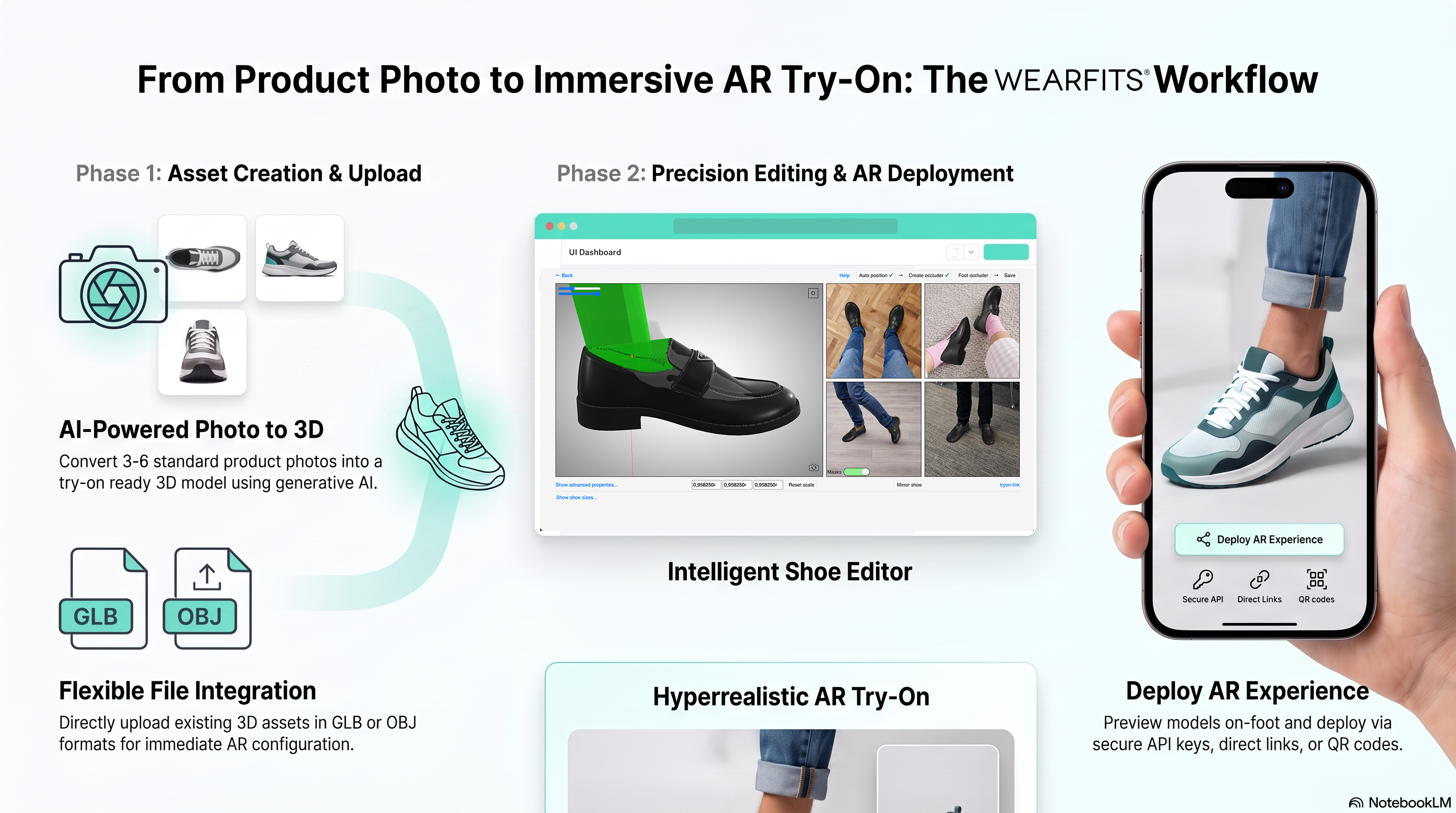
WEARFITS is an AI-powered virtual try-on platform for footwear, bags, and apparel. The Shopify plugin covers Try-On button placement on PDPs and shoes catalogue digitization (photo-to-3D, no CAD files); custom implementations layer sizing, in-store mirrors, viewer + VTO combos, and bespoke web modules on top via our API.
Here is the pattern from the 40+ pilots we have run since 2024.
A Shopify brand installs the plugin. The theme block drops in. The catalogue indexes. The AR works — point the camera, the shoe appears on the foot, looks great. Two weeks in, the dashboard says engagement is 9%. Conversion lift is barely measurable. Someone in the Slack channel asks the uncomfortable question: "Is this actually working?"
We open the PDP on a mid-size Android phone. The Try-On button is in the description accordion. Or it's a tiny camera icon with no label. Or it auto-opens on page load and gets dismissed by every shopper. Or it's perfectly placed — but the collection page gives no signal that any of these products even have a Try-On feature, so shoppers click through to the PDP not expecting it and never reach for it.
The AR didn't fail. The communication did.
Here is the principle this playbook is built on: the magic only happens if shoppers find the button. That sounds obvious. It is consistently the single largest gap between the brands that get a 28% lift and the brands that get a 2% lift. The AR engine is identical in both cases. The PDP — and the path to the PDP — is not.
Your job is to drive traffic to the Try-On. From the collection page, from the PDP, from email, from the size guide link. Make it easy to find. Make it look interesting enough to tap. Tell the shopper what they're about to do. Then the AR earns the conversion.
This playbook is that traffic-driving and discoverability work, broken into eight rules, three layouts, and four common failure modes.
Before any of the tactical rules, set up the one metric that judges them. Without it, every placement debate becomes an opinion contest.
Try-on engagement rate. Shoppers who interact with the Try-On feature, divided by PDP sessions on enabled SKUs. The benchmark we see across Shopify footwear merchants is 45–60% when discoverability is done right. Below 25%, your button is buried or your communication is unclear. Above 70% is suspicious — usually a measurement issue where you're counting button impressions instead of meaningful interactions.
Track it from Day One via the Shopify customer events stream as tryon_engaged. Klaviyo, Triple Whale, and Northbeam pick it up automatically — your existing analytics stack doesn't need to learn new tricks. If you want before/after numbers on conversion lift, compare PDP-level conversion on enabled SKUs versus matched controls (similar price, similar category, similar return-rate baseline) over the same two-week window.
These are the rules we have settled on after pattern-matching across pilots. Treat them as defaults; you can break any of them with a specific reason, but you shouldn't break them by accident.
Sixty to seventy percent of Shopify fashion traffic is mobile. The mobile fold ends roughly 600 pixels below the URL bar. Your Try-On entry point must be visible without scrolling. If it isn't, your engagement rate caps somewhere around 15%, no matter how good the AR looks once a shopper finally reaches it.
The cleanest pattern: a labelled pill button anchored either adjacent to the product image carousel or directly below the size picker. Visible the instant the page loads.
The decision moment happens at the size picker. If your Try-On button is in the description accordion, in the FAQ tab, or in a sticky bottom bar that competes with "Add to Cart" — it is not in the right place. It needs to sit directly above the size picker, directly below it, or inline with it.
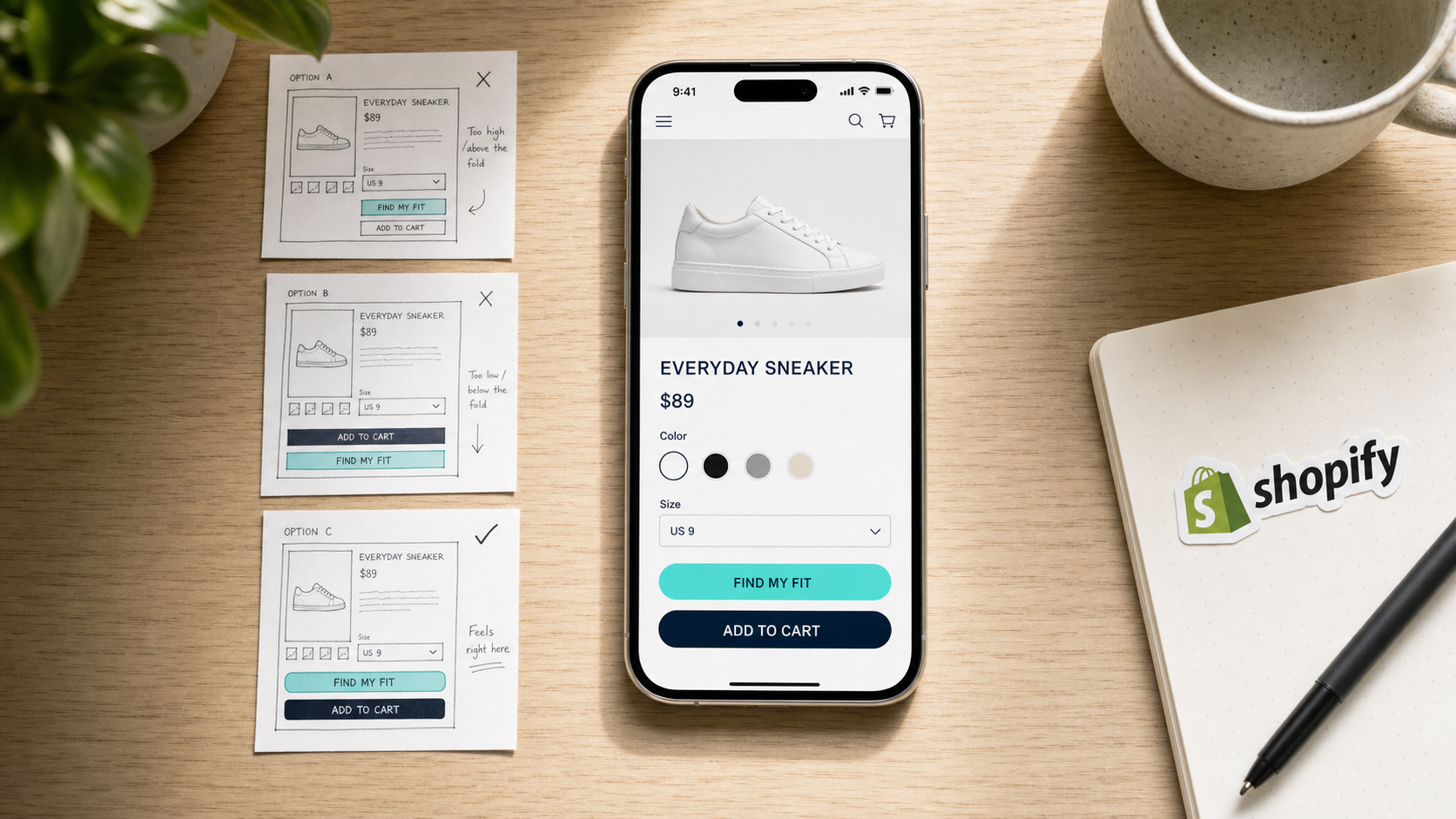
Our highest-performing layout: the Try-On button styled as a primary CTA below the size dropdown, before "Add to Cart." Engagement on this layout consistently runs in the 55–65% range.
"Try On" wins more A/B tests than any other label we have tested. Runners-up that have also won in specific cases: "See on my foot" (footwear), "Try it on" (bags), "View in your space" (large bags / lifestyle products). What loses every single time: icon-only buttons, generic "AR" labels, abbreviated "VTO" labels, and anything corporate ("Virtual Fitting Experience").
The label is communication. The shopper needs to understand what will happen when they tap it. "Try On" is two short words, action-oriented, and zero ambiguity. Default to it.
The Try-On button should look like a primary action, not a tertiary link. That means: a real button shape (pill or rounded rectangle), real button weight (filled, not outlined), a brand-accent color that contrasts with everything else on the PDP, and a tap target of at least 44 pixels tall.
Brands that style the Try-On button to "fit the rest of the design language" — outlined ghost button, gray secondary — see engagement rates 30–50% lower than brands that let it stand out. The PDP is not the place to be design-shy. Let the button breathe.
A one-line label under or beside the button is worth its weight in conversion. Examples that work: "See how they look on your foot," "Use your camera — no app download," "Try in AR, takes 5 seconds." Shoppers who haven't used AR Try-On before need to know three things: (a) it's quick, (b) no install required, (c) what specifically they're going to see.
Without this micro-copy, you lose roughly 20–25% of the shoppers who would otherwise tap. With it, you bring those shoppers back. Cheap conversion gain.
Modal opens win. Full-page launches lose. The full-page launch breaks the PDP context, and the back button on mobile triggers a navigation prompt that scares the shopper off. A modal — full-bleed if you want, but still inside the PDP context — keeps the shopper anchored.
When the shopper closes the modal, they should be returned to the PDP with the size picker still scrolled into view. Not the top of the page. Not a thank-you screen. The state they left.
Counter-intuitive, but pre-emptively opening the AR canvas (no shopper tap required) annoys more shoppers than it serves. Mobile shoppers especially want to look at the product first; auto-launching forces them to dismiss before they engage with anything else.
The shopper needs to choose the experience. A button that opens on tap is a conscious decision. An auto-popping AR canvas is an interruption.
Most Shopify brands design the desktop PDP first, then squash it into mobile. For Try-On placement, do the opposite. Design the mobile experience around the seven rules above, then port it to desktop — usually with a larger canvas, a wider Add to Cart button, and a QR handoff module (see the next section).
The desktop traffic is more likely to convert (higher AOV, more considered purchase), but the mobile traffic is more likely to engage. Optimize the placement for the bigger top-of-funnel; the desktop conversion lift follows.
Here is the failure mode nobody warns you about: shoppers on desktop. AR Try-On runs on the device's camera. The shopper is on a laptop with no camera pointed at their feet. They tap the button — and now what?
The right answer is a QR handoff. The desktop PDP shows a Try-On module with a QR code; the shopper scans it with their phone, the AR session opens on mobile, and the experience picks up from there. The QR is the bridge between the lean-back desktop browse and the lean-forward mobile try-on.
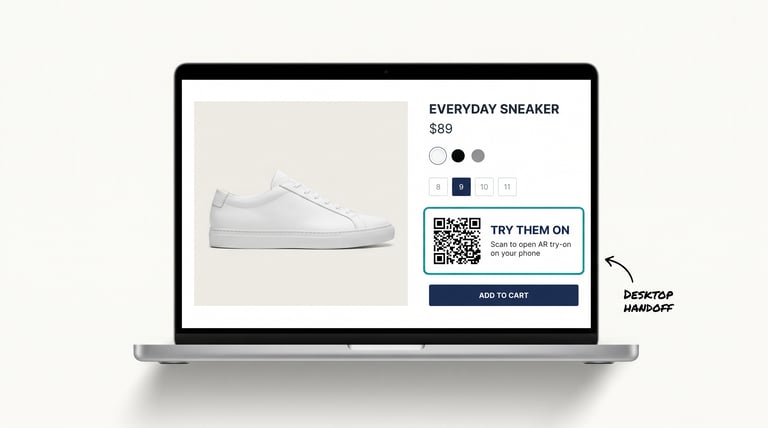
A few rules for the QR module:
The reverse direction matters too — mobile shoppers who started on the phone and want to finish checkout on desktop. Email capture inside the Try-On modal ("Want this on your laptop later? We'll send you the link") creates a cross-device handoff that closes more transactions than people expect.
Here is the lever almost no Shopify brand actually pulls: the collection page. The PDP placement work above only matters if shoppers reach the PDP in the first place. The collection page is where they decide which product to click.
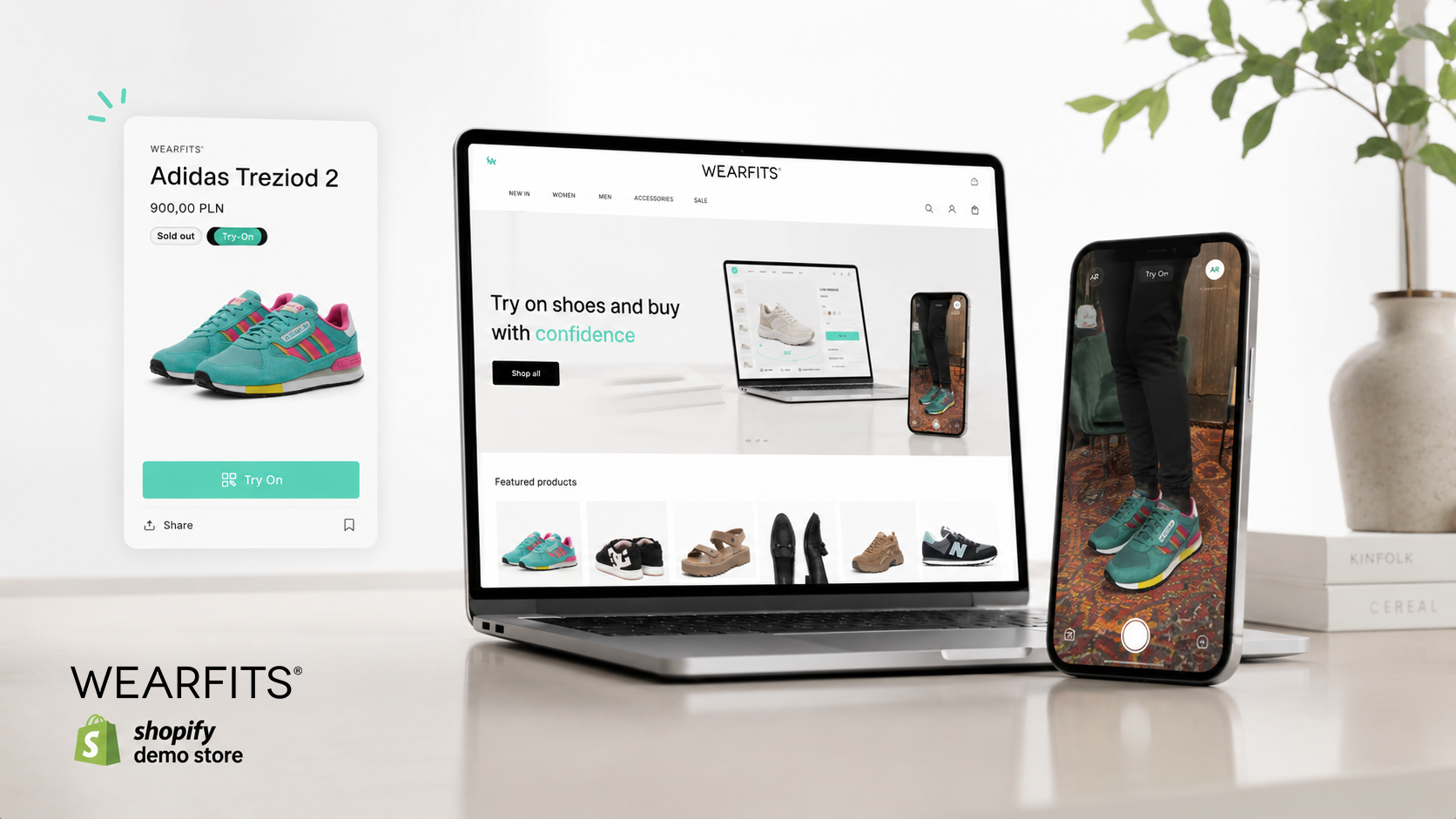
If 30% of your catalogue has Try-On enabled, and the collection page gives no signal which 30%, you are wasting the discovery moment. Badging the Try-On enabled products on the PLP drives more traffic to those PDPs — and shoppers who arrive on a PDP already expecting Try-On engage with the button at 2–3x the rate of shoppers who don't know it's there.
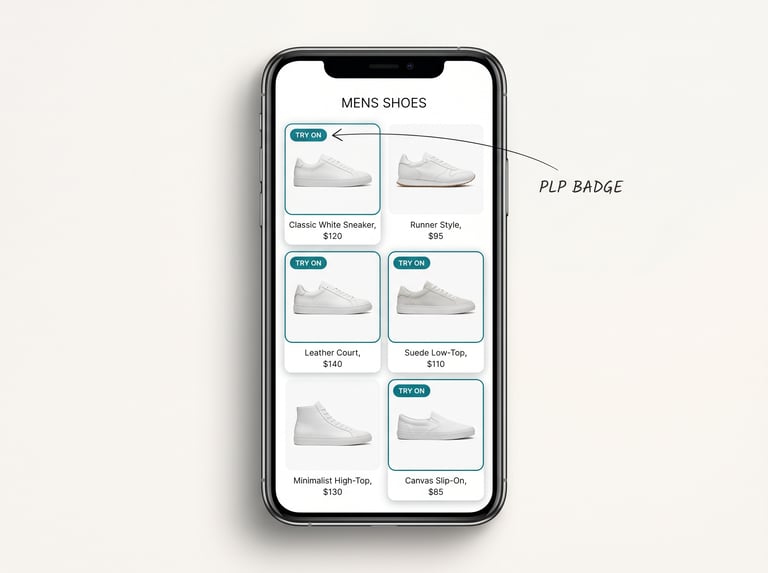
The execution is straightforward:
This single change — collection page badging — is the highest-leverage discoverability move available to a Shopify brand after PDP placement. It is also the most commonly skipped.
Three PDP layouts that have delivered 20%+ conversion lift on enabled SKUs in our pilots.
Best for: footwear, single-variant products, brands with a clean PDP.
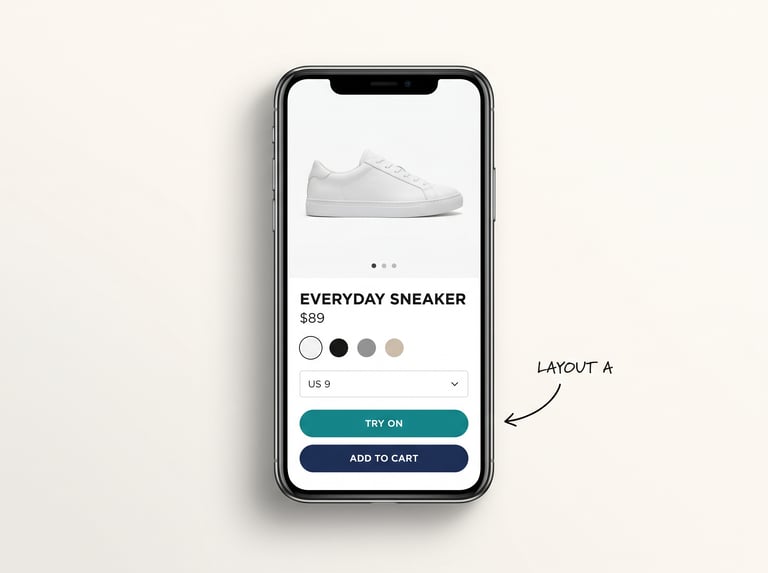
The "Try On" button is the visual peer of "Add to Cart" — same width, similar prominence, teal where Add to Cart is navy. Mobile-first, ports cleanly to desktop with the QR handoff bolted in.
Engagement rate: 55–65%.
Best for: desktop-heavy traffic, brands with rich PDP modules, multi-variant footwear.
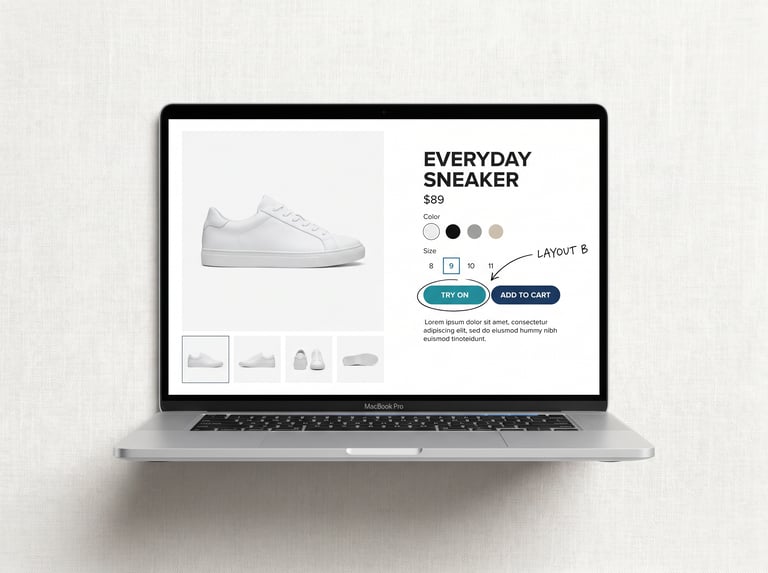
Two equally weighted primary CTAs, side by side. Try-On opens in modal. On mobile, the two stack vertically (Try-On on top, Add to Cart below).
Engagement rate: 45–55%.
Best for: brands with long editorial PDPs where the size picker is deep in the page.
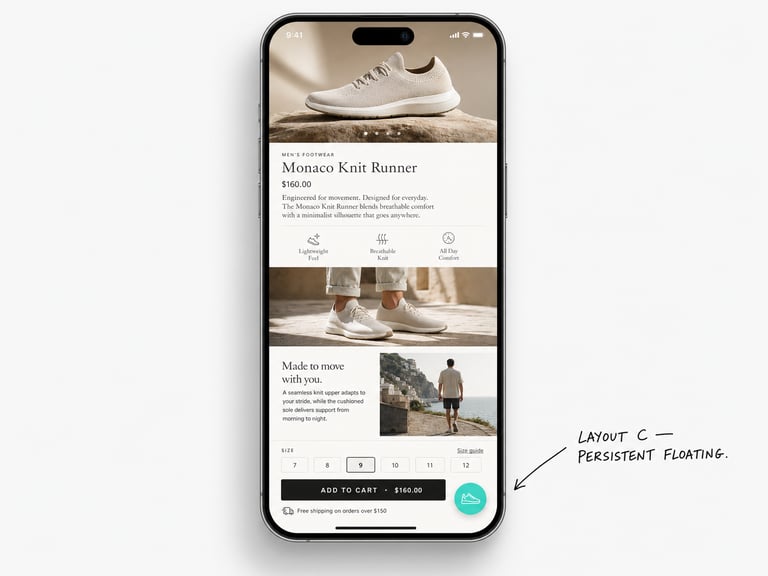
The floating button stays visible during scroll, opens the AR canvas in a full-screen modal. Good for brands committed to long product storytelling who can't sacrifice the editorial space above the fold.
Engagement rate: 50–60%.
Four common failure modes. Each one caps engagement somewhere below 25%.
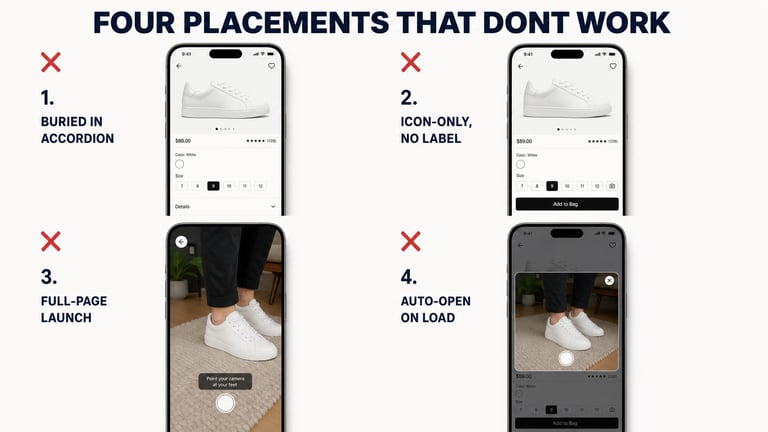
Try-On tucked inside the description accordion. Not visible without scrolling, and the shopper has no reason to expand the accordion before adding to cart. Engagement rate: 8–15%.
Try-On as an icon-only button with no label. Shoppers don't know what they're tapping. Icon-only entries lose roughly 60% of their potential engagement versus a labelled version of the same button. Engagement rate: 15–20%.
Try-On launching a full-page experience. Modal good, full-page bad. The full-page launch breaks PDP context; the mobile back button triggers a navigation prompt that scares shoppers off. Engagement rate: 20–25%, with conversion drop post-engagement.
Try-On default-open on PDP load. Pre-emptively opening the AR canvas annoys more shoppers than it serves. Mobile shoppers especially want to look at the product first; auto-launching forces them to dismiss before they engage with anything else. Engagement rate (measured as meaningful interaction, not page-load impression): 15–20%.
If you have the WEARFITS Shopify app installed and your catalogue indexed, the following sequence gets you from default install to a tuned Layout A PDP plus PLP badging plus desktop QR handoff in about ninety minutes. WEARFITS, a web-first virtual try-on solution founded in Krakow, installs as a Shopify app and theme app extension, so every step below is either a checkbox in the app dashboard or a copy-paste into the theme editor.
Look at your current PDP on mobile. Count the elements above the fold. If the size picker is above the fold, go with Layout A. If you have heavy editorial content, go with Layout C. Layout B is for desktop-heavy traffic only.
In your Shopify theme editor, open the product template. Add the "WEARFITS Try-On" app block. Drag it directly below the size picker for Layout A, beside Add to Cart for Layout B, or as a floating element for Layout C. Save the section. Mobile preview: confirm visibility above the fold.
In the WEARFITS app dashboard, set:
In the same dashboard, enable the "Desktop QR handoff" toggle. Configure the module label ("Try them on") and the helper text ("Scan to open AR try-on on your phone"). The QR auto-generates per SKU and per session; no engineering required.
In the dashboard, switch on "Show TRY ON badge on collection pages." Choose the badge style (teal pill, top-left corner is our default). Add the optional one-sentence ribbon on top of the collection page ("Now with AR Try-On — look for the badge"). Preview a collection page; confirm badges appear on enabled SKUs.
Open three test PDPs on mobile and desktop. Walk through: PLP load → badge visible → tap product → PDP load → Try-On button visible above the fold → tap → modal opens → AR works → close modal → return to PDP state. If any step fails, the most likely fix is in the theme block position. If everything works, push to production.
After 90 minutes, you have the plugin's full Try-On UX live on real traffic.
The Shopify plugin handles Try-On + shoes digitization for the broad majority of footwear and bags brands. There are scenarios it doesn't cover, where a custom WEARFITS implementation (via API or bespoke web modules) becomes the right path:
If any of these apply, the Shopify plugin is still a useful Phase 1 — it gets your catalogue indexed and your team operating the Try-On UX before the custom layer arrives. WEARFITS deploys across Shopify, mobile WebViews, and in-store mirrors from one integration, so the plugin → API path is upgrade-safe by design.
The 90-minute setup is for a brand starting from a default install. Moving from one layout to another after launch is a 15-minute job in the theme editor — drag the block, save, push. The slow part is deciding the new layout, not implementing it.
No. WEARFITS works on standard Shopify plans. Theme blocks and app extensions are available across all Shopify tiers.
Almost every modern Shopify Online Store 2.0 theme supports app blocks. If yours doesn't (older themes from before 2021), the WEARFITS team will provide a Liquid snippet you can paste manually. The placement principles are the same — just an extra five minutes of work to position it.
The WEARFITS theme block is upgrade-safe. When you upgrade your theme, the app block moves with you because it lives in the app extension, not in the theme code.
Layout A (inline below the size picker) is the default for most footwear stores. Layout B (side-by-side) is for desktop-heavy traffic and rich PDP modules. Layout C (floating button) is for editorial-heavy PDPs where the size picker sits deep in the page. If you have multiple collections with different PDP structures, configure the WEARFITS app per collection — the dashboard supports collection-specific defaults.
This playbook is Shopify-specific. The placement principles transfer (above the fold, modal, labelled button, etc.) but the implementation on marketplaces is different because you don't own the PDP. For TikTok Shop specifically, the WEARFITS WebView integration runs in the product detail iframe; that's a custom deployment, not the plugin path.
Two consecutive months where engagement rate is in the target range (45%+ on enabled SKUs) and conversion lift is measurable (15–25%+ versus matched controls). At that point, the plugin is doing its job. Further gains come from layering in the custom sizing/fit tier, expanding to more categories, or moving to in-store and omnichannel.
Most Shopify Try-On pilots fail because shoppers never find the button, not because the AR doesn't work. Drive traffic to it: badge enabled items on collection pages, place the button above the fold on the PDP, label it clearly ("Try On"), open it in a modal, add a QR handoff for desktop. Eight rules, three working layouts, four placements that don't, a 90-minute setup. The Shopify plugin covers Try-On + shoes digitization; sizing, in-store, 3D viewer + VTO combos, and custom apparel sit on top via the WEARFITS API when you're ready.
If you're running a Shopify footwear or bags store and want WEARFITS placed correctly on your SKUs: